
ReviewPost › Guides
How to turn Google reviews into Instagram posts
Copy a short, specific 5-star review, put it on a 1080×1080 image in your brand colours with the star rating and the customer’s first name, and post it with a thank-you caption. You can lay it out by hand in a free design tool in about 15 minutes, or use the ReviewPost Chrome extension to make it in one click from Google Maps.
Most local businesses have dozens of glowing Google reviews that almost nobody reads. The people who find them were already searching for you. Posting those reviews on Instagram, Facebook and LinkedIn puts them in front of people who haven’t heard of you yet, in the voice they trust most: other customers.
Step 1: Pick a review worth posting
Not every 5-star review makes a good post. Look for ones that:
- Name something specific. “The flat white is the best in town” beats “Great place!”
- Answer a worry new customers have. Price, waiting times, parking, how they treat nervous first-timers.
- Are short, or have one great sentence. Under 30 words reads well on a phone. You can use the best line as a headline.
- Sound like a real person. A little personality is more convincing than polished praise.
Step 2: Get the right size
Instagram crops images that don’t fit its formats, so start at the right size:
| Where | Size (pixels) | Shape |
|---|---|---|
| Instagram or Facebook feed post | 1080 × 1080 | Square |
| Instagram Story or Reel, TikTok cover | 1080 × 1920 | Tall, 9:16 |
| LinkedIn or Facebook link post | 1200 × 627 | Wide |
For Stories and Reels, keep the review text out of the top 14% and bottom 35% of the image. That’s where Instagram puts your profile name, the caption and the like, comment and share buttons.
Step 3: Design it
The free manual way
- Open the review on Google Maps and copy the text.
- Create a 1080×1080 design in a free design tool.
- Fill the background with your main brand colour.
- Paste the review in large text, at least 48px, so it reads on a phone.
- Add five stars, the customer’s first name and initial, and “Google review”.
- Add your logo or handle small at the bottom, then export as PNG.
This works, but expect 10 to 15 minutes a post, and longer if you want a Story version too.
The one-click way
ReviewPost is a free Chrome extension that adds a Make post button under every review on Google Maps and Trustpilot.
- Install ReviewPost and type your website once. It picks up your brand colours.
- Open your business on Google Maps and go to the Reviews tab.
- Click Make post under the review you want.
- Choose a design, then download the Post, Story and LinkedIn sizes together.
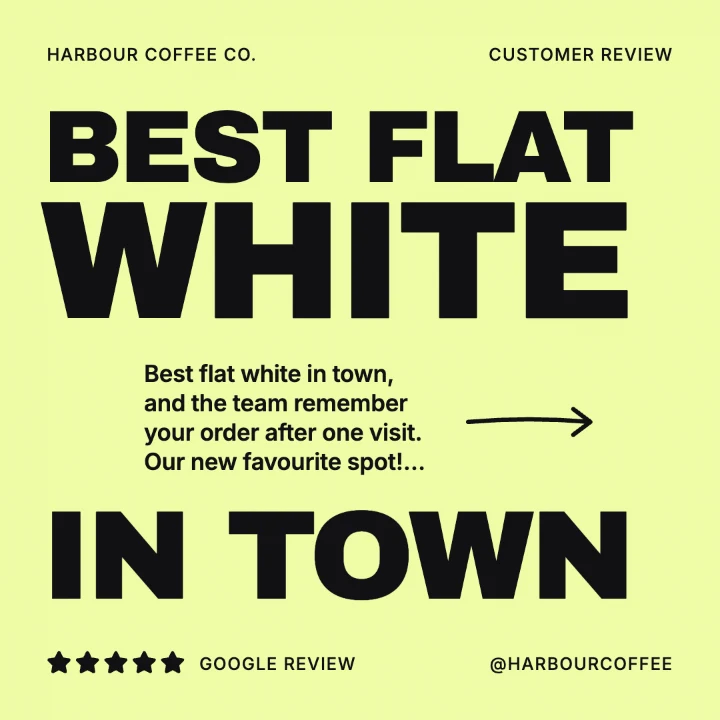
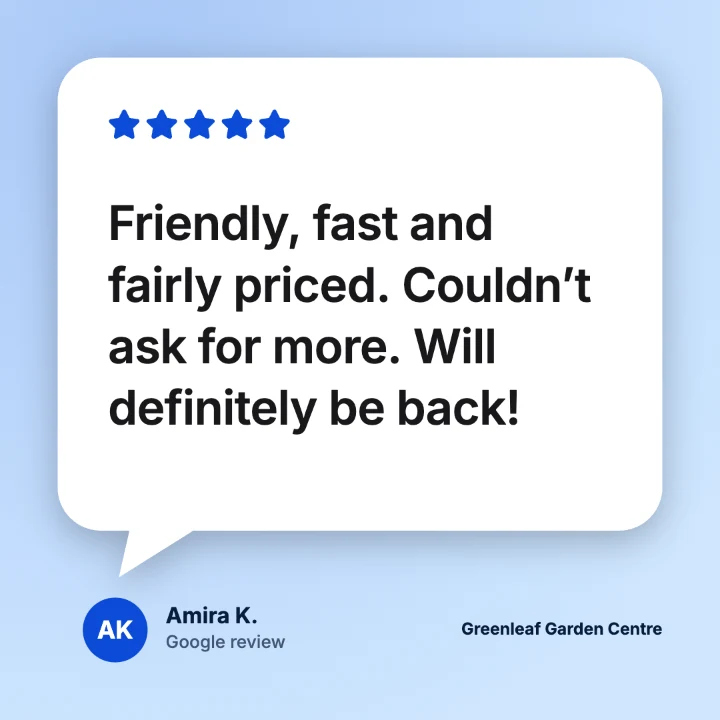

Three of ReviewPost’s 21 designs, each made from a real-style Google review in one click.
Step 4: Write the caption
The image does the selling, so keep the caption warm and short. Thank the customer, add one line of context and invite the next visit:
Example: “Thank you Sarah! 💚 Our team really do remember your order. See you for the next flat white. 📍 Harbour Street, open from 7am.”
Tag the customer only if they’re happy to be tagged, and add your location so local people find the post.
Step 5: Post on a rhythm
One review post a week is plenty for most small businesses. Pin your best one to the top of your Instagram grid, share each new post to your Story, and save them to a “Reviews” Highlight so new visitors see proof straight away.
Keep it honest
Customer reviews only work because people trust them. Trim a review if you need to, but don’t change what the customer meant, and only post genuine reviews. UK consumer law bans fake reviews and misleading edits to real ones. Shortening the reviewer’s name to a first name and initial is a good habit for their privacy.
Common questions
Can I post my Google reviews on Instagram?
Yes. Google reviews are public, and sharing them is a common way for businesses to show social proof. Keep the wording true to what the customer said, credit them by first name and initial, and never post reviews that aren’t genuine.
What size should a review post be for Instagram?
Use 1080×1080 pixels for a square feed post and 1080×1920 for Stories and Reels. For Stories and Reels, keep the text away from the top 14% and bottom 35% of the image, where Instagram shows the profile, caption and buttons.
Is there a free way to turn reviews into posts?
Yes. You can copy the review into a free design tool and lay it out yourself, which takes 10 to 15 minutes per post. ReviewPost’s free plan does it in one click from Google Maps or Trustpilot, with three designs and all three sizes.
How often should a business post customer reviews?
One review post a week is a good rhythm for most small businesses. It keeps social proof in your feed without crowding out your other content.
Make your first review post in one click
Free Chrome extension. No account needed. Works on Google Maps and Trustpilot.
Add ReviewPost to Chrome